USB-C Cable Types: Data, Power and Video
Not all USB-C cables are equal. Learn how to tell a charging cable from a data cable, what an e-marker does, and which cable your monitor needs.
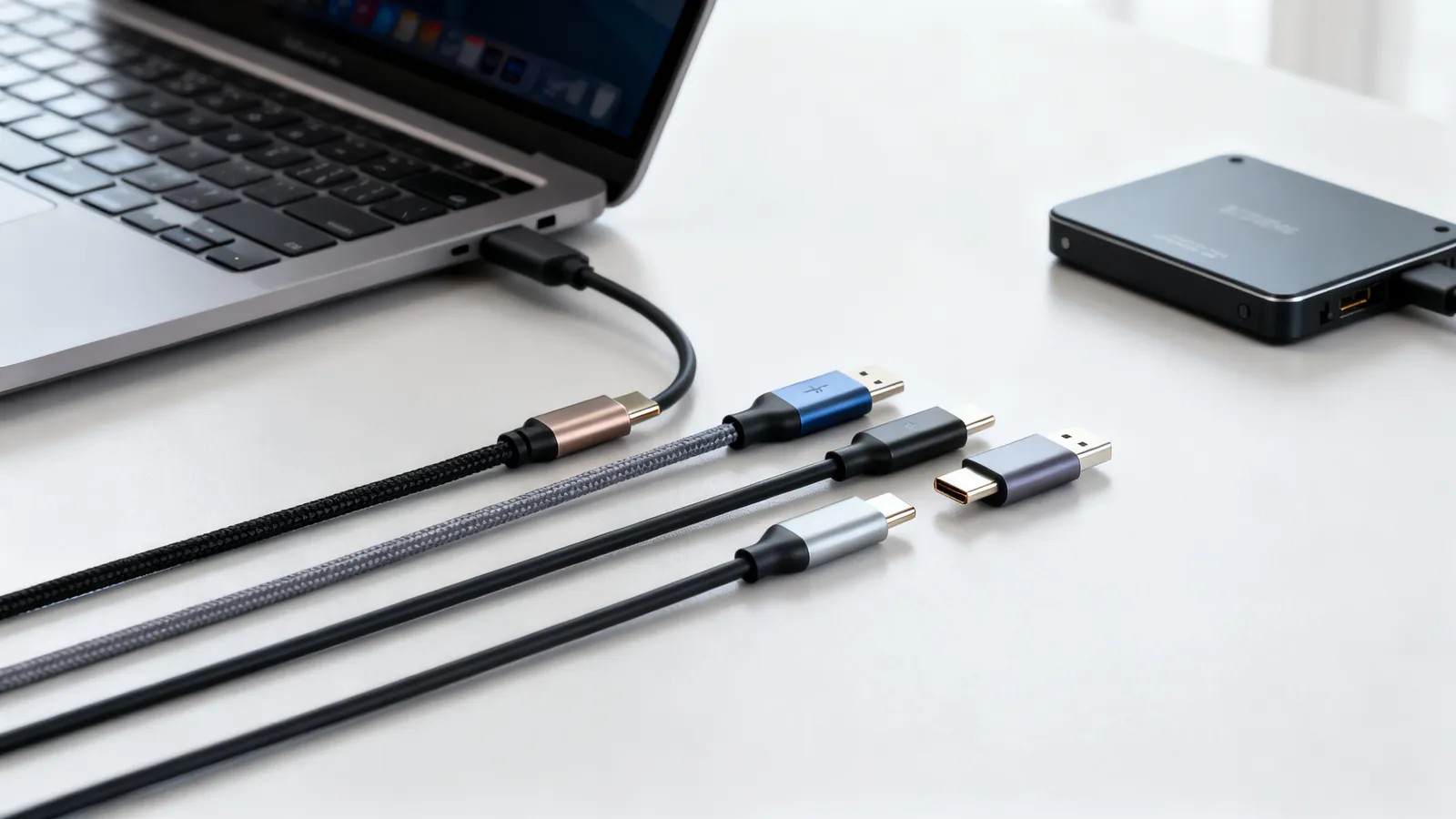
A USB-C cable is not a single product. The connector is the same, but the cable inside may carry only USB 2.0 data, or it may carry 80 Gbps, 240 W of power and a DisplayPort signal. The plug tells you nothing about the wire. This page explains what varies inside a USB-C cable, how to read the labels, and how to pick the right one for charging, data or a monitor.
The connector is not the cable
USB-C is a 24-pin reversible connector, specified in 2014. It says nothing about speed or power. A USB-C cable may be a USB 2.0 cable (480 Mbps) or carry 10, 20, 40 or 80 Gbps. It may be rated for 3 A or 5 A, or for no data at all beyond charging.
When you buy a cable, you are buying three separate capabilities:
- Data speed: how fast it moves files or drives a display.
- Power: how much current it can carry safely.
- Video: whether it carries DisplayPort or Thunderbolt signals.
A cable may have one, two or all three. A charging cable often has only power and USB 2.0 data. A monitor cable needs high-speed data and video. A Thunderbolt cable needs everything.
USB-C data vs charging cable
The most common confusion is between a cable that only charges and a cable that also moves data quickly.
A USB 2.0 USB-C cable has only the USB 2.0 pair wired for data. It can charge at up to 60 W (3 A at 20 V) and may carry video if it is a full-featured cable, but its data speed is 480 Mbps. Many cables sold for phone charging are this type.
A USB 5Gbps, 10Gbps or 20Gbps cable has the extra high-speed pairs. These are the cables you need for external SSDs, docks and monitors. The speed is printed on the packaging, but not always on the cable.
USB-IF now labels products by speed: USB 5Gbps, USB 10Gbps, USB 20Gbps, USB 40Gbps, USB 80Gbps. If a cable has no speed marking, assume it is USB 2.0 unless the maker states otherwise. For a full breakdown of how the old names map to the new ones, see USB 3.0, 3.1, 3.2 and USB4: speeds and names decoded.
What the specification allows for length
USB-C cable lengths are limited by the standard, not by the maker:
| Cable type | Maximum length |
|---|---|
| USB 2.0 | 4 m (13 ft) |
| USB 5Gbps | 2 m (6.6 ft) |
| USB 10Gbps | 1 m (3.3 ft) |
| Passive USB4 40Gbps | 0.8 m (2.6 ft) |
Longer cables exist, but they are active or optical, with electronics built into the plugs. A passive cable longer than the table above may work at a lower speed or not at all.
Power: 60 W, 100 W and 240 W
Every USB-C to USB-C cable must carry 3 A, which is 60 W at 20 V. That is the baseline. If you need more than 60 W, the cable must have an e-marker chip.
An e-marker is a small chip in the cable plug that tells the charger and device what the cable can handle. Without it, the devices default to 3 A. With it, the cable can be rated for 5 A (100 W) or, under USB Power Delivery 3.1 Extended Power Range, 240 W at 48 V.
A 100 W cable has an e-marker rated for 5 A. A 240 W cable has an e-marker rated for 5 A and 48 V. If you use a 60 W cable with a 100 W charger and laptop, the laptop will charge at 60 W or less. The cable is the bottleneck.
For a detailed explanation of the wattage labels and how to choose, see USB-C charging: 60 W, 100 W and 240 W cables explained.
USB-C cable for a monitor
Driving a monitor over USB-C uses DisplayPort Alt Mode. The cable must carry the video signal, which means it needs the high-speed pairs and often a specific orientation. Not every USB-C cable does this.
A USB 2.0 charging cable will not drive a monitor. A USB 5Gbps or 10Gbps data cable may or may not support video, depending on how it is wired. The safest choice is a cable marked for USB4, Thunderbolt 3, 4 or 5, or one explicitly sold as a USB-C video cable.
Thunderbolt 4 and 5 cables also work as USB-C cables for data and charging. Thunderbolt 4 supports two 4K displays or one 8K, and up to 100 W charging. Thunderbolt 5 supports 80 Gbps both ways, up to 120 Gbps in one direction for displays, and up to 240 W charging. For the differences between Thunderbolt and USB4, see Thunderbolt 3, 4 and 5 vs USB4.
If you are connecting a monitor that uses HDMI or DisplayPort, a simple USB-C to HDMI or USB-C to DisplayPort cable is often the easiest. These cables have the converter built into the plug and are directional: the USB-C end goes to the computer.
How to read the labels and markings
USB-C cables are rarely marked with their full capabilities. Here is what to look for:
- Speed: USB 5Gbps, 10Gbps, 20Gbps, 40Gbps, 80Gbps. If absent, assume USB 2.0.
- Power: 60 W, 100 W, 240 W, or 3 A, 5 A. If absent, assume 60 W.
- Video: DisplayPort Alt Mode, Thunderbolt, or a specific video standard. If absent, assume no video.
- Certification: Thunderbolt cables have a lightning bolt logo. USB4 cables may have a USB4 logo. These are not guarantees of every feature, but they are a good start.
A cable that says only “USB-C” is a basic cable. It will charge a phone and move data at USB 2.0 speed. It will not drive a monitor or charge a laptop at full speed.
What goes wrong
- Using a charging cable for a dock or monitor. The dock may not work at all, or the monitor may not light up. The cable lacks the high-speed pairs.
- Using a 60 W cable with a 100 W laptop. The laptop charges slowly or not at all under load. The e-marker limits the current to 3 A.
- Assuming a USB-C cable carries video. Many do not. Check for DisplayPort Alt Mode or Thunderbolt.
- Mating an active cable backwards. Active and optical USB-C cables are directional. The source end must go to the computer or charger.
- Using a passive cable that is too long. A 3 m passive USB 10Gbps cable will not meet the standard and may drop to USB 2.0 speed or fail.
- Confusing USB-C with Thunderbolt. Thunderbolt 3, 4 and 5 use the USB-C connector, but not every USB-C port is Thunderbolt. A Thunderbolt cable works in a USB-C port, but a USB-C cable may not work in a Thunderbolt dock at full speed.
Choosing the right cable
Match the cable to the job:
- Phone charging: a USB 2.0 USB-C cable with a 60 W rating is enough for most phones. If your phone supports fast charging above 60 W, get a 100 W cable.
- Laptop charging: check the laptop’s power requirement. If it is above 60 W, get a 100 W or 240 W cable with an e-marker.
- External SSD: get a USB 10Gbps or 20Gbps cable, and keep it short (1 m or less for 10Gbps).
- Monitor: get a USB4 or Thunderbolt cable, or a USB-C to HDMI/DisplayPort cable. Make sure it supports the resolution and refresh rate you need.
- Dock: use the cable that came with the dock, or a Thunderbolt/USB4 cable rated for the dock’s speed and power.
When in doubt, a Thunderbolt 4 or USB4 cable will handle almost everything, but it costs more. For simple charging, a basic USB 2.0 cable is fine.
What a USB-C cable can do depends on the cable
USB-C is a connector, not a cable specification. The cable inside determines speed, power and video support. Read the labels, check for an e-marker if you need more than 60 W, and choose a cable rated for the speed and features you need. A charging cable will not drive a monitor, and a 60 W cable will not charge a 100 W laptop at full speed.
Common questions
How can I tell if a USB-C cable is for data or just charging?
Look for a speed marking: USB 5Gbps, 10Gbps, 20Gbps, 40Gbps or 80Gbps. If there is no speed marking, assume it is a USB 2.0 cable (480 Mbps). Charging-only cables often have no data speed printed and may only carry USB 2.0.
What is an e-marker in a USB-C cable?
An e-marker is a chip in the cable plug that tells the charger and device the cable's current rating. Cables without an e-marker are limited to 3 A (60 W). Cables with an e-marker can carry 5 A (100 W) or, under USB PD 3.1, 240 W.
Can I use any USB-C cable for a monitor?
No. The cable must support DisplayPort Alt Mode or Thunderbolt to carry video. A USB 2.0 charging cable will not work. Look for a cable marked USB4, Thunderbolt, or explicitly sold as a USB-C video cable.
What is the difference between a USB 2.0 USB-C cable and a USB 3.2 cable?
A USB 2.0 USB-C cable has only the USB 2.0 data pair and runs at 480 Mbps. A USB 3.2 cable (now labelled USB 5Gbps, 10Gbps or 20Gbps) has additional high-speed pairs and runs much faster. The connector is the same, but the internal wiring differs.
How long can a USB-C cable be?
The USB specification sets maximum lengths: USB 2.0 up to 4 m (13 ft), USB 5Gbps up to 2 m (6.6 ft), USB 10Gbps up to 1 m (3.3 ft), and passive USB4 40Gbps up to 0.8 m (2.6 ft). Longer cables are active or optical and contain electronics.
Sources
Read next
Thunderbolt 3, 4 and 5 vs USB4: Speeds and Cables
Thunderbolt 4 vs USB4 explained: bandwidth, PCIe, displays, charging and cable lengths, plus how Thunderbolt 3 and 5 compare and which cable to buy.
Lightning to USB-C: Cables, Adapters and Speeds
Lightning vs USB-C explained: why iPhone moved to USB-C, the EU common charger dates, iPhone 15 transfer speeds, and which adapters work with older gear.
USB-C Charging: 60 W, 100 W and 240 W Cables
USB-C cables carry 60 W, 100 W or 240 W depending on the e-marker chip and USB Power Delivery. Learn which cable your phone or laptop needs.
HDMI vs DisplayPort: Which Cable for Which Screen
HDMI and DisplayPort compared: bandwidth, refresh rates, daisy-chaining and adapters. Pick the right cable for a TV, a gaming monitor or a laptop.
IEC Power Cord Types: C13, C5, C7 and C19
IEC 60320 couplers explained: C13 vs C14, C5 cloverleaf, C7 figure 8 and C19/C20. Ratings, plug ends, and how to pick a safe replacement cord.