VGA and DVI Today: Connecting Older Monitors
VGA is analogue, DVI can be digital or analogue. Learn which adapters work passively, dual-link DVI limits, and how to connect an old monitor today.
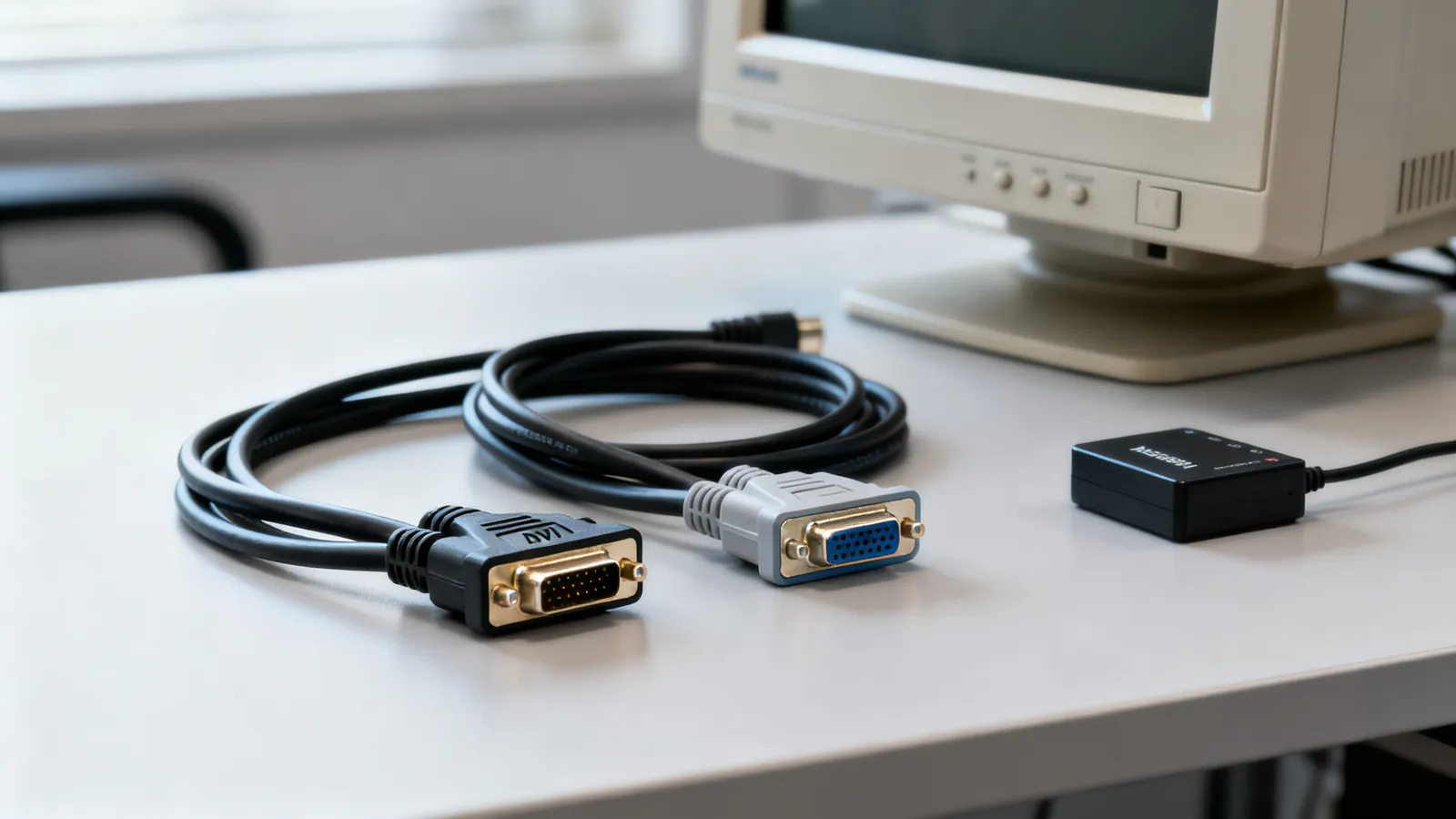
VGA and DVI are two different things: VGA carries analogue RGB only, while DVI comes in digital-only (DVI-D), analogue-only (DVI-A) and combined (DVI-I) forms. That difference decides everything about adapters. A DVI-D port can feed HDMI with a passive adapter because both carry the same digital video signal. A VGA port cannot feed HDMI passively, because HDMI has no analogue inputs; it needs an active converter. Getting an old monitor or projector onto a modern computer is mostly a question of matching the signal type, not the plug shape.
What VGA actually carries
VGA is analogue RGB on a 15-pin, three-row DE-15 connector, often called DB15 or HD15. The computer generates red, green and blue levels plus separate horizontal and vertical sync, and the monitor samples them. There is no digital data, no audio and no device identification beyond a few ID pins. Because the signal is analogue, it degrades with cable length and with the quality of the graphics output stage. Long VGA runs show ghosting, colour fringing and soft edges, and the monitor’s auto-adjust can only do so much.
VGA has no defined maximum resolution in the way digital interfaces do. What it can carry depends on the RAMDAC in the graphics adapter and the bandwidth of the cable. In practice, 1920x1200 at 60 Hz is the practical ceiling for most equipment, and lower resolutions are more reliable over longer cables. VGA is the one interface here that can be split, switched and extended with simple analogue hardware, which is why it survived so long in classrooms and control rooms.
The three DVI types and what they mean
DVI-D is digital only. DVI-A is analogue only and carries the same kind of signal as VGA. DVI-I combines both sets of pins, so a DVI-I port can drive either a digital or an analogue monitor depending on the adapter used. The connector shape tells you which: DVI-D has a flat blade with no four analogue pins around it, DVI-I has those four pins, and DVI-A has the pins but no digital contacts.
Single-link DVI runs at 165 MHz and reaches 1920x1200 at 60 Hz. Dual-link DVI adds a second digital link and reaches 2560x1600 at 60 Hz. Dual-link cables and ports have the extra pins populated; a single-link cable will not carry a dual-link resolution, and a dual-link cable still works fine at single-link resolutions.
| Type | Signal | Typical maximum | Passive adapter to HDMI? |
|---|---|---|---|
| VGA (DE-15) | Analogue RGB | 1920x1200 at 60 Hz in practice | No - needs an active converter |
| DVI-A | Analogue RGB | Same as VGA | No |
| DVI-D single link | Digital, 165 MHz | 1920x1200 at 60 Hz | Yes, for video |
| DVI-D dual link | Digital, two links | 2560x1600 at 60 Hz | Yes, but only the single-link part carries over |
| DVI-I | Digital and analogue | Either of the above | Yes, for the digital side |
DVI-D carries the same video signal as HDMI, so a passive DVI-D to HDMI adapter works for video. Audio is a separate matter: standard DVI does not carry audio, so a DVI-to-HDMI link usually arrives silent unless the source and display both support the optional audio-over-DVI extension. For a television or soundbar, plan on a separate audio cable or use a source with HDMI output.
Which adapters are passive and which must be active
A passive adapter is just a rewiring of the same signal onto a different plug. It works only when both ends speak the same electrical language.
- DVI-D to HDMI: passive, video only. The digital signal is identical.
- DVI-I to VGA: passive, because the DVI-I port has the analogue pins. This is the standard way to attach an old VGA monitor to a DVI-I graphics card.
- DVI-D to VGA: not possible passively. DVI-D has no analogue pins, so an active converter is required.
- VGA to HDMI: active. The converter must digitise the analogue signal and embed it in an HDMI stream. Cheap units often lock to one resolution and add latency.
- VGA to DVI-D: active, for the same reason.
- HDMI to DVI-D: passive, video only, and the same adapter works in either direction.
When choosing between digital display links for a new installation, HDMI vs DisplayPort: which to use explains the bandwidth and feature differences that decide the port.
Getting an old monitor onto a modern computer
Modern laptops and small-form-factor computers often have only HDMI, DisplayPort or USB-C outputs. The route to an old monitor depends on what the monitor accepts.
If the monitor has DVI-D, an HDMI-to-DVI-D cable or adapter is the simplest answer. It is passive, cheap and reliable at 1920x1200. If the monitor has only VGA, an active HDMI-to-VGA or DisplayPort-to-VGA converter is needed. These are powered from the HDMI or USB port and appear to the computer as an ordinary display. Set the output resolution to one the monitor supports natively; scaling a 1280x1024 panel to 1920x1080 produces a soft image.
A USB-C port that supports DisplayPort Alt Mode can drive a DVI or VGA monitor through an adapter, but the adapter must match the mode. A USB-C port that carries only USB data will not output video at all, no matter what adapter is attached.
For projectors, the same rules apply. Many installation projectors still have VGA and DVI inputs alongside HDMI. A long VGA run to a projector is the least reliable option; a short VGA cable from a converter placed near the projector is better than a long analogue cable from the lectern.
Sharing one monitor between computers
Where an old monitor is shared between two machines, a KVM switch handles the keyboard, mouse and video together. The important detail with older displays is EDID emulation: without it, a computer that is switched away sees no monitor and rearranges windows or drops to a low resolution. KVM switches: cables, EDID and USB covers how emulation and cable choice affect this.
What goes wrong
- Assuming DVI always means digital. A DVI-A port or cable is analogue. Plugging a DVI-A monitor into a DVI-D port through a passive adapter gives no picture.
- Expecting audio over DVI. Standard DVI is video only. A DVI-to-HDMI adapter does not create audio.
- Using a passive VGA-to-HDMI adapter. These exist as products but cannot work; a genuine converter contains active electronics and usually a power input.
- Mixing up single-link and dual-link. A 2560x1600 monitor needs a dual-link DVI port, a dual-link cable and a dual-link capable source. Any one of the three missing drops the resolution.
- Long VGA runs. Analogue signal loss shows as ghosting and colour shift. Keep VGA short and convert to digital near the display.
- Cheap active converters. Many lock to 60 Hz and a fixed resolution, and some do not pass the monitor’s native mode. Check the supported list before buying.
- Forgetting the analogue sunset. New graphics hardware increasingly omits analogue outputs entirely, so a DVI-I port that once drove a VGA monitor may be absent on the replacement machine.
Choosing cables and connectors for legacy video
For composite and component video on RCA connectors, which appear on older TVs, VCRs and some projectors, Composite vs component video (RCA) explains the colour coding and the quality difference. Those formats are standard definition or up to 1080i and are separate from VGA and DVI.
When buying cables, match the connector type exactly. A DVI-D cable has the flat blade and no analogue pins; a DVI-I cable has the four pins and will fit either port. DVI cables are not all wired for dual-link, so check the description if you need 2560x1600. For VGA, look for coaxial construction rather than thin untwisted wire; the difference is visible on a large monitor.
Adapters are directional in practice even when the plug fits both ways. A DVI-D to HDMI adapter is passive and bidirectional for video. An active VGA-to-HDMI converter is not: the VGA plug is the input and the HDMI socket is the output. Label the ends if the installation will be serviced by someone else.
Finally, if the computer has no legacy port and no adapter solves the problem, a USB graphics adapter can add a display over USB. These are fine for office work and presentations but not for gaming or video playback, because the image is compressed and sent over the USB link.
Common questions
Can I use a VGA to HDMI adapter?
Only an active converter will work, because VGA is analogue and HDMI is digital. A passive plug adapter cannot convert the signal. Active converters need power, usually from a USB port, and often support a fixed set of resolutions.
What is the difference between DVI-D and DVI-I?
DVI-D carries digital video only. DVI-I carries both digital and analogue video, so it can drive a VGA monitor through a passive adapter. The DVI-I connector has four extra pins around the flat blade; DVI-D does not.
Does DVI carry audio?
Standard DVI does not carry audio. Some graphics cards and displays support an optional audio extension over DVI, but it is not universal. If you need sound on an HDMI display, use a separate audio cable or a source with HDMI output.
What is dual-link DVI used for?
Dual-link DVI adds a second digital link to reach 2560x1600 at 60 Hz. Single-link DVI tops out at 1920x1200 at 60 Hz. You need a dual-link port, a dual-link cable and a dual-link capable source to use the higher resolution.
Can I connect an old VGA monitor to a modern laptop?
Yes, with an active converter from HDMI, DisplayPort or USB-C to VGA. The laptop must output video on that port; a USB-C port that only carries data will not work. Set the resolution to the monitor's native mode for a sharp image.
Read next
HDMI vs DisplayPort: Which Cable for Which Screen
HDMI and DisplayPort compared: bandwidth, refresh rates, daisy-chaining and adapters. Pick the right cable for a TV, a gaming monitor or a laptop.
HDMI 1.4, 2.0, 2.1 and 2.2: Versions and Cable Speeds
HDMI 1.4, 2.0, 2.1 and 2.2 compared: bandwidth, resolutions, refresh rates, eARC and VRR. Learn why cables are rated by speed, not version.
HDMI ARC vs eARC: Audio Return Explained
ARC returns stereo and compressed 5.1 over HDMI 1.4; eARC adds uncompressed multichannel PCM and lossless formats like Dolby Atmos. Here is what each needs.
Maximum USB Cable Length: Limits by Version
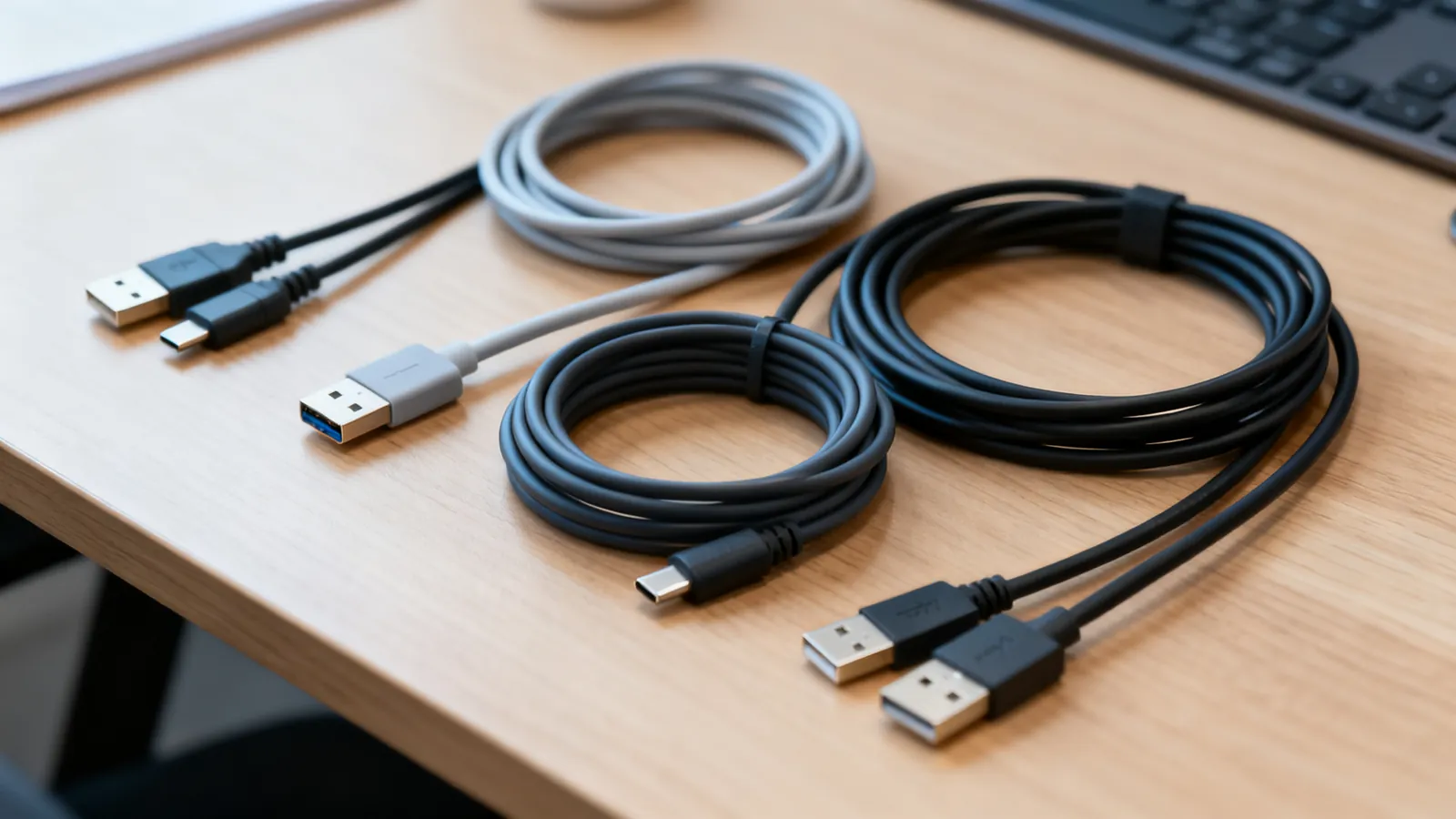
USB cable length limits by version: USB 2.0 to 5 m, USB 3.x to 3 m, USB-C 40Gbps to 0.8 m. Hubs, active cables and optical extensions explained.
Lightning to USB-C: Cables, Adapters and Speeds
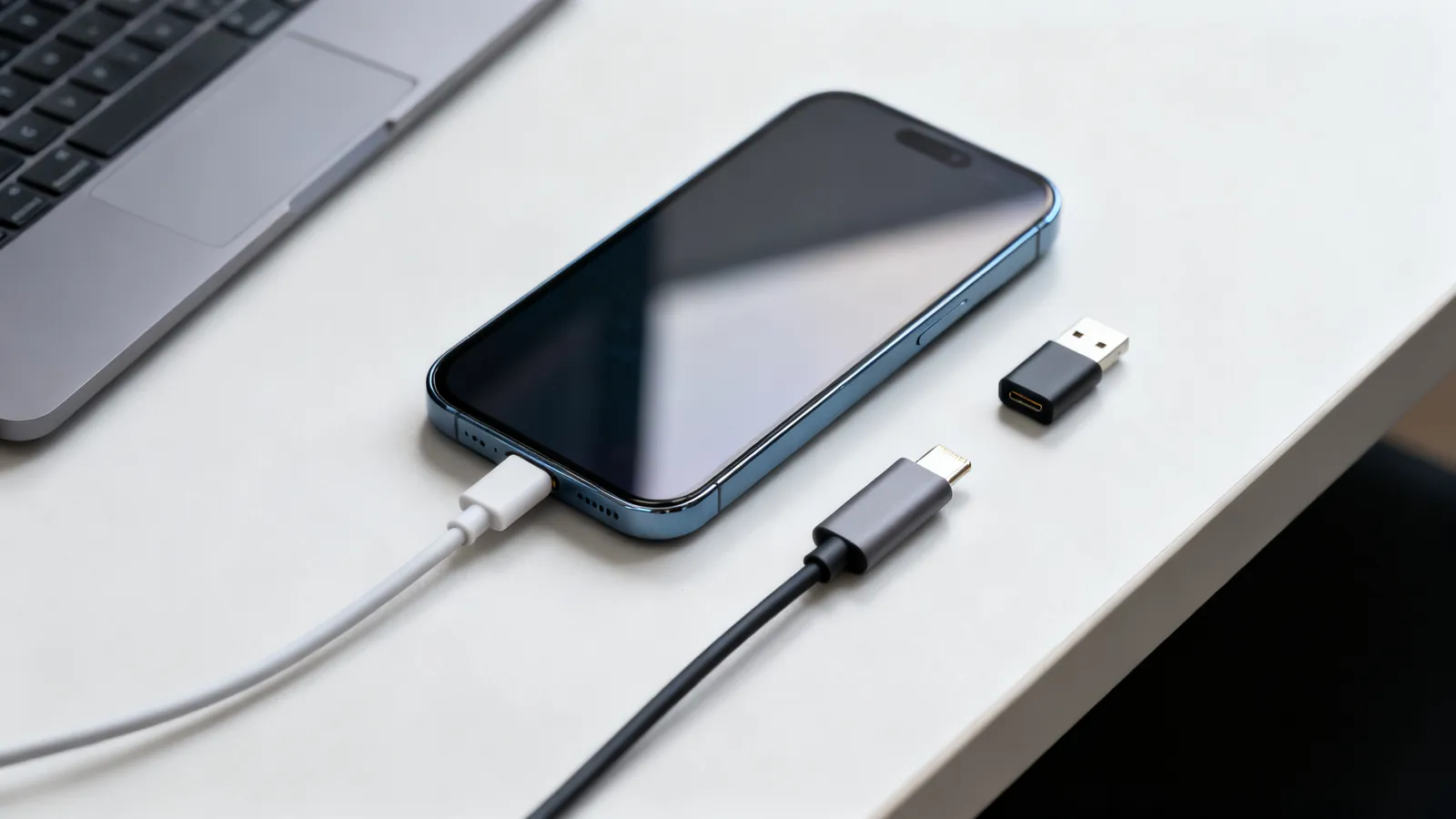
Lightning vs USB-C explained: why iPhone moved to USB-C, the EU common charger dates, iPhone 15 transfer speeds, and which adapters work with older gear.