KVM Switch Cables, EDID and USB: A Reference
How a KVM switch works: matching video ports and bandwidth to your monitor, EDID emulation, USB keyboard emulation, and the cables between.
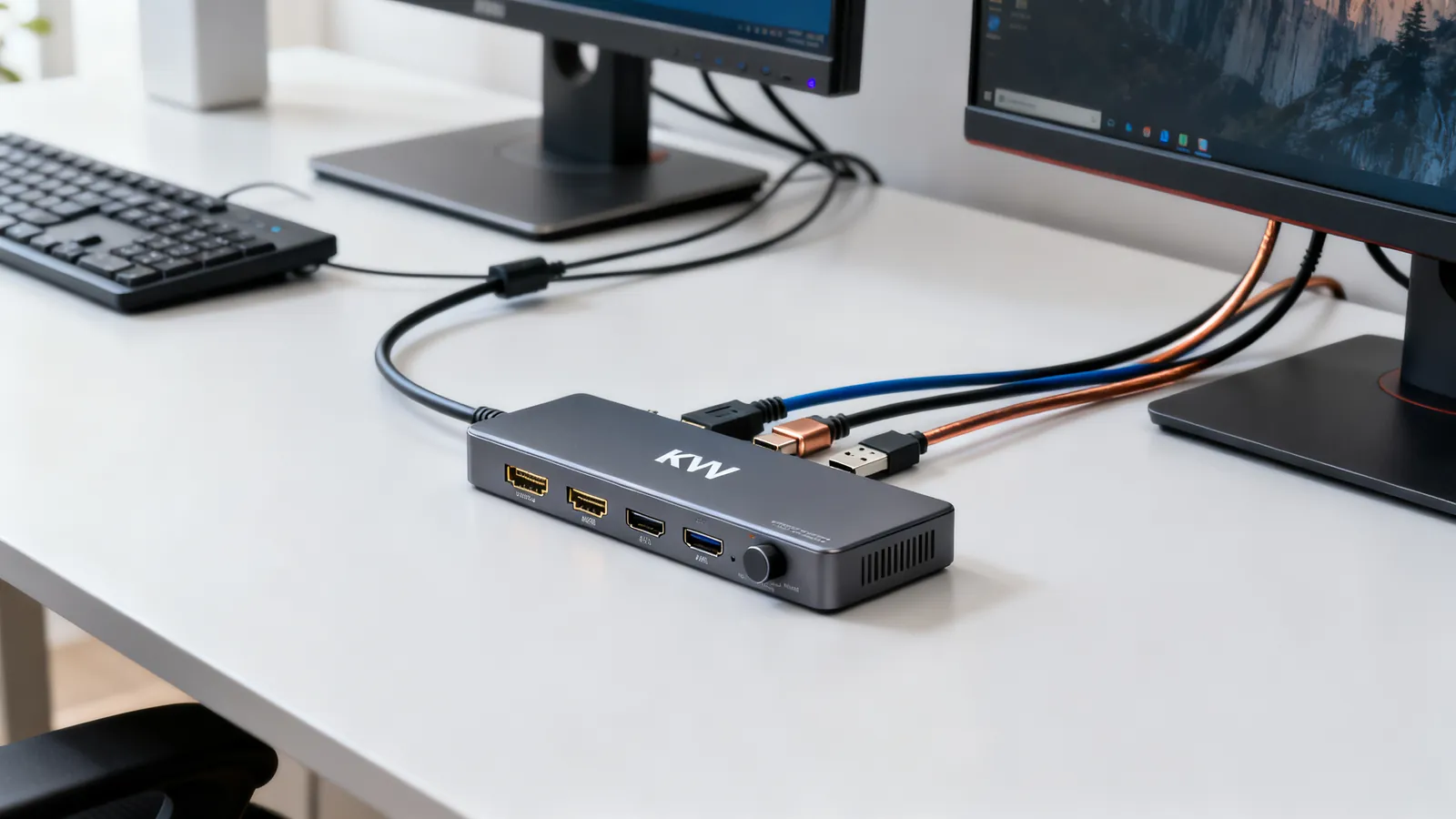
A KVM switch lets one keyboard, monitor and mouse control two or more computers. The video side is where most installations fail: the switch must pass the same signal, at the same bandwidth, that the monitor and computers expect. This reference covers how a KVM works, how to match its video ports and bandwidth to the display, what EDID emulation does, how USB keyboard emulation behaves, and which cables to use between them.
How a KVM switch works
A KVM switch sits between the computers and the shared peripherals. Each computer connects to the switch with a video cable and a USB cable (or a combined cable set). The switch presents one keyboard, one mouse and one monitor to the user, and routes those signals to the selected computer.
There are two broad types:
- Video-only or USB-only switches handle one signal type and are rare in modern setups.
- Combined KVM switches carry video and USB together, often over a single cable set per computer.
The switch may also include audio, microphone, or Ethernet switching, but the core function is video and USB.
Port types and what they carry
A KVM switch has a set of computer-side ports and a set of console-side ports. The console side connects to the monitor, keyboard and mouse. The computer side connects to each computer.
Common video port types on KVM switches:
| Port type | Signal | Typical use |
|---|---|---|
| HDMI | Digital video and audio | Consumer and office computers, monitors |
| DisplayPort | Digital video and audio | Computers and monitors, daisy-chaining |
| DVI | Digital video (DVI-D) or analogue (DVI-A) or both (DVI-I) | Older monitors and computers |
| VGA | Analogue RGB | Legacy equipment |
| USB-C | DisplayPort Alt Mode or USB data | Laptops and docks |
A KVM switch does not convert between signal types. An HDMI KVM switch takes HDMI in and puts HDMI out. If a computer has DisplayPort and the monitor has HDMI, the conversion must happen before the switch or after it, not inside it.
Matching video bandwidth to the monitor
The switch must pass the video signal without degrading it. That means the switch’s video bandwidth must be at least as high as the signal the computer and monitor use.
HDMI and DisplayPort versions define bandwidth:
- HDMI 1.4: 10.2 Gbps; 4K at 30 Hz.
- HDMI 2.0: 18 Gbps; 4K at 60 Hz; HDR added in 2.0a.
- HDMI 2.1: 48 Gbps; 4K at 120 Hz, 8K at 60 Hz.
- DisplayPort 1.2: 21.6 Gbps (HBR2).
- DisplayPort 1.4: 32.4 Gbps (HBR3), DSC compression; 4K at 120 Hz, 8K at 60 Hz with DSC.
- DisplayPort 2.0/2.1: UHBR10 = 40 Gbps, UHBR13.5 = 54 Gbps, UHBR20 = 80 Gbps.
A KVM switch rated for HDMI 2.0 will pass 4K at 60 Hz. If the monitor is 4K at 120 Hz, the switch must support HDMI 2.1 or DisplayPort 1.4 with DSC, and the cables must match.
Cable certification matters here. For DisplayPort, look for DP8K (for HBR3, 32.4 Gbps), DP40 (UHBR10, 40 Gbps), or DP80 (UHBR20, 80 Gbps). For HDMI, cables are certified by speed: High Speed (10.2 Gbps), Premium High Speed (18 Gbps), Ultra High Speed (48 Gbps). A cable labelled “HDMI 2.1” is mislabelled; the version number belongs to the port, not the cable.
When connecting older monitors, adapters may be needed. DVI-D carries the same video signal as HDMI, so a passive DVI-D to HDMI adapter works for video (usually without audio). VGA to HDMI needs an active converter, because VGA is analogue. For more on this, see VGA and DVI today: connecting older monitors.
EDID emulation and why it matters
EDID (Extended Display Identification Data) is a small data structure a monitor sends to a computer to describe its capabilities: supported resolutions, refresh rates, and audio formats. When a computer boots or a display is connected, it reads the EDID to decide what video modes to offer.
In a KVM setup, the monitor is shared. When the switch is set to computer A, computer B sees no monitor. Without EDID emulation, computer B may think the monitor was disconnected. It may rearrange windows, reduce resolution, or disable the display output.
A KVM switch with EDID emulation presents a stored copy of the monitor’s EDID to every computer, even when that computer is not selected. Each computer continues to see a monitor with the same capabilities, so windows do not rearrange and the video output stays active.
Some switches copy the EDID from the connected monitor at power-up; others have a fixed internal EDID. A fixed EDID may not match the monitor’s full capabilities, so the computer may offer fewer modes. A switch that copies the monitor’s EDID is preferable when the monitor supports high resolutions or refresh rates.
EDID emulation is especially important for KVM switches used with laptops that might otherwise sleep or change display settings when the lid is closed or the external monitor is switched away.
USB keyboard and mouse emulation
USB is not a simple electrical switch. When a USB device is connected, the host and device enumerate: they exchange descriptors and agree on a configuration. If a KVM switch simply disconnected the keyboard and mouse from one computer and connected them to another, each computer would see a disconnect and reconnect, which can take seconds and may cause the keyboard to be unrecognised.
To avoid this, many KVM switches emulate a USB keyboard and mouse to each computer. The switch presents a standard USB keyboard and mouse to every computer at all times. When the user types or moves the mouse, the switch translates those actions into USB reports for the selected computer. The non-selected computers see an idle keyboard and mouse.
This emulation keeps the USB connection alive, so switching is fast and the computers do not lose their input devices. It also allows features like hotkey switching and mouse roaming between screens.
Some switches also emulate USB storage or other devices, but keyboard and mouse emulation is the core requirement for a smooth KVM experience.
Cables between the switch and the computers
The cables used to connect each computer to the KVM switch must match the video and USB ports on both ends.
Video cables
Use a cable rated for the video bandwidth you need. For HDMI, a Premium High Speed or Ultra High Speed cable is appropriate for 4K at 60 Hz or higher. For DisplayPort, a DP8K or DP40 cable is appropriate for HBR3 or UHBR10. For more on DisplayPort versions and cable certification, see DisplayPort 1.2, 1.4 and 2.1, and DP40/DP80 cables.
Passive HDMI copper cables get less reliable as length and speed rise. Active copper cables (with a signal chip) and fiber HDMI (AOC) cables go further; both are directional, so the “source” end goes to the computer.
USB cables
USB cables must match the USB version and connector type. A USB 2.0 cable (480 Mbps) is sufficient for keyboard and mouse, but if the KVM switch also carries USB 3.x data or charging, a USB 3.x cable is needed.
USB-C is a connector, not a speed. A USB-C cable may be a USB 2.0 cable (480 Mbps) or carry 10, 20, 40 or 80 Gbps. For KVM switches that use USB-C for video (DisplayPort Alt Mode) and data, the cable must support the required video bandwidth and USB data rate.
USB Type-C cable lengths in the specification: USB 2.0 up to 4 m (13 ft); USB 5Gbps up to 2 m (6.6 ft); USB 10Gbps up to 1 m (3.3 ft); passive USB4 40Gbps up to 0.8 m (2.6 ft).
If the KVM switch has a USB hub built in, it may be bus-powered or need its own power adapter. A powered hub has its own adapter and can supply full power to each port. For more on hubs and docks, see USB hubs and docks: powered vs unpowered, and what a dock adds.
What goes wrong
- Bandwidth mismatch. A KVM switch rated for HDMI 1.4 (10.2 Gbps) will not pass 4K at 60 Hz, which needs 18 Gbps. The monitor may show no signal or drop to a lower resolution.
- No EDID emulation. Computers may rearrange windows or disable the display output when switched away. This is especially noticeable with laptops.
- USB disconnects. A switch without USB emulation may cause the keyboard and mouse to be re-detected on every switch, which can take seconds and may fail.
- Wrong cable type. Using a USB 2.0 cable for a USB 3.x signal will limit data rate or fail. Using an HDMI cable not rated for the required speed will cause dropouts.
- Passive adapters where active are needed. VGA to HDMI needs an active converter. A passive adapter will not work.
- Length limits. HDMI and DisplayPort signals degrade over distance. Passive copper cables have shorter reliable runs at higher speeds. Active or fiber cables extend this.
- Power. A bus-powered USB hub in a KVM switch may not supply enough power for all devices. Use a powered hub or a switch with its own power adapter.
Choosing a KVM switch
Start with the video signal. Identify the resolution and refresh rate you need, then calculate the required bandwidth. Choose a switch that supports that bandwidth on both the computer side and the console side.
Check the USB requirements. If you need USB 3.x data or charging, ensure the switch and cables support it. If you only need keyboard and mouse, USB 2.0 is sufficient.
Look for EDID emulation and USB keyboard/mouse emulation. These features make switching reliable and fast.
Match the connectors. The switch must have the right ports for your computers and monitor, or you must use adapters. Remember that adapters may be passive or active depending on the signal conversion.
Finally, consider the cables. Use cables rated for the bandwidth and length you need. For video, choose certified cables. For USB, match the version and connector type. Keep cable runs within specification to avoid dropouts.
Common questions
What is EDID emulation in a KVM switch?
EDID emulation presents a stored copy of the monitor's capabilities to every computer, even when that computer is not selected. This prevents the computer from thinking the monitor was disconnected, so windows do not rearrange and the video output stays active.
Do I need a USB 3.0 KVM switch for keyboard and mouse?
No. Keyboard and mouse use USB 2.0 (480 Mbps), which is sufficient. USB 3.x is only needed if the switch also carries high-speed data or charging for other devices.
Can I use a passive HDMI to DisplayPort adapter with a KVM switch?
No. HDMI and DisplayPort are different signal types. A passive adapter cannot convert between them. You need an active adapter or a KVM switch with the correct ports on both sides.
Why does my monitor go black when I switch to another computer?
The KVM switch may not have EDID emulation, so the computer sees the monitor disconnect and stops sending video. A switch with EDID emulation keeps the video signal active for all connected computers.
What cable do I need for a 4K 60Hz KVM switch?
For HDMI, use a Premium High Speed cable (18 Gbps). For DisplayPort, use a DP8K cable (32.4 Gbps) for HBR3. The cable must be rated for the bandwidth of the signal.
Sources
Read next
DisplayPort 1.2, 1.4 and 2.1: Versions and Cables
DisplayPort 1.2, 1.4 and 2.1 compared: bandwidth, DSC, MST, DP40 and DP80 cable certification, and DisplayPort over USB-C.
Long HDMI Runs: Active, Fiber and HDBaseT
Why long passive HDMI cables fail, how active copper and fiber HDMI cables work, and when HDBaseT over category cable is the right answer for a long run.
HDMI ARC vs eARC: Audio Return Explained
ARC returns stereo and compressed 5.1 over HDMI 1.4; eARC adds uncompressed multichannel PCM and lossless formats like Dolby Atmos. Here is what each needs.
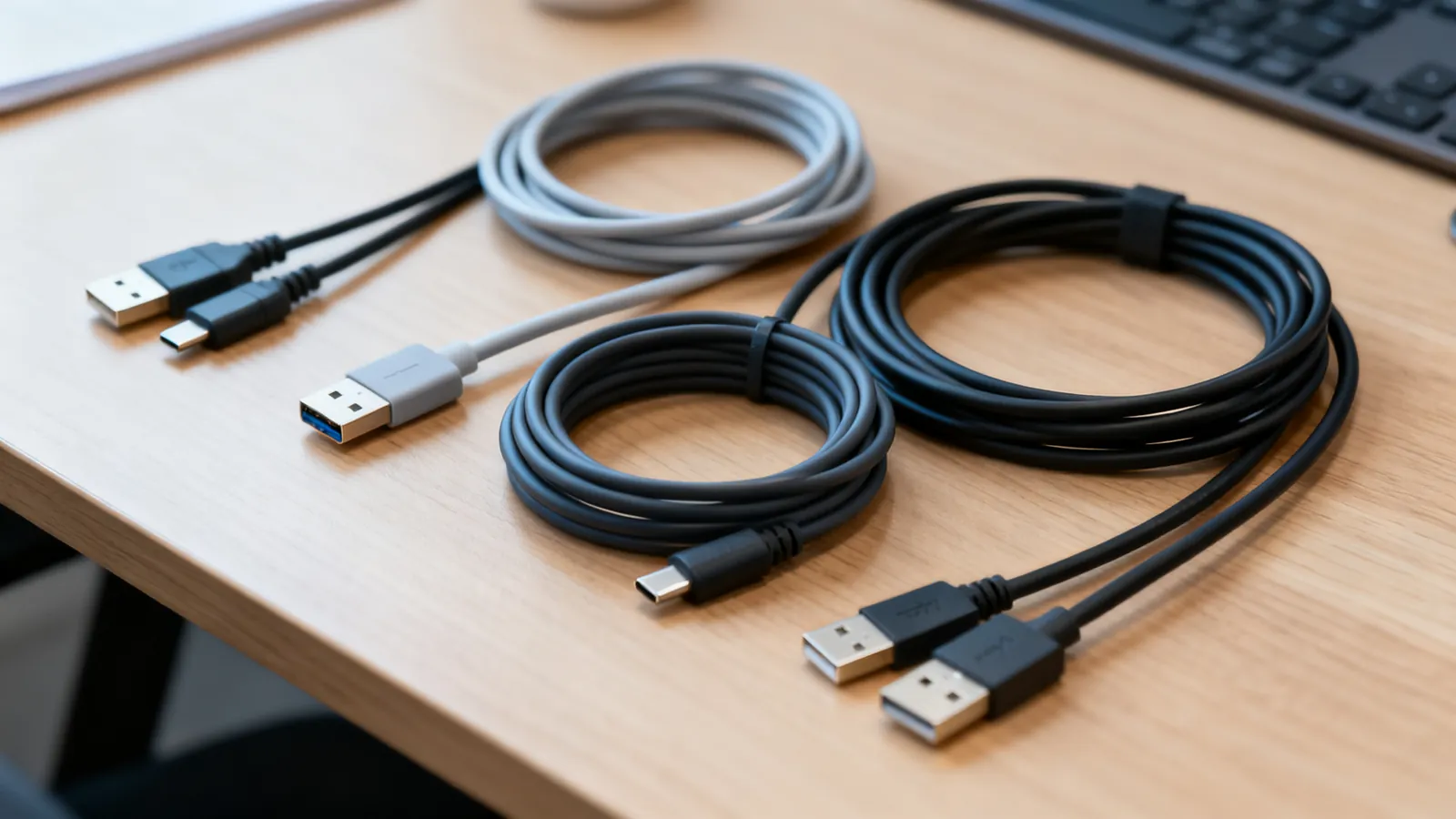
Maximum USB Cable Length: Limits by Version
USB cable length limits by version: USB 2.0 to 5 m, USB 3.x to 3 m, USB-C 40Gbps to 0.8 m. Hubs, active cables and optical extensions explained.
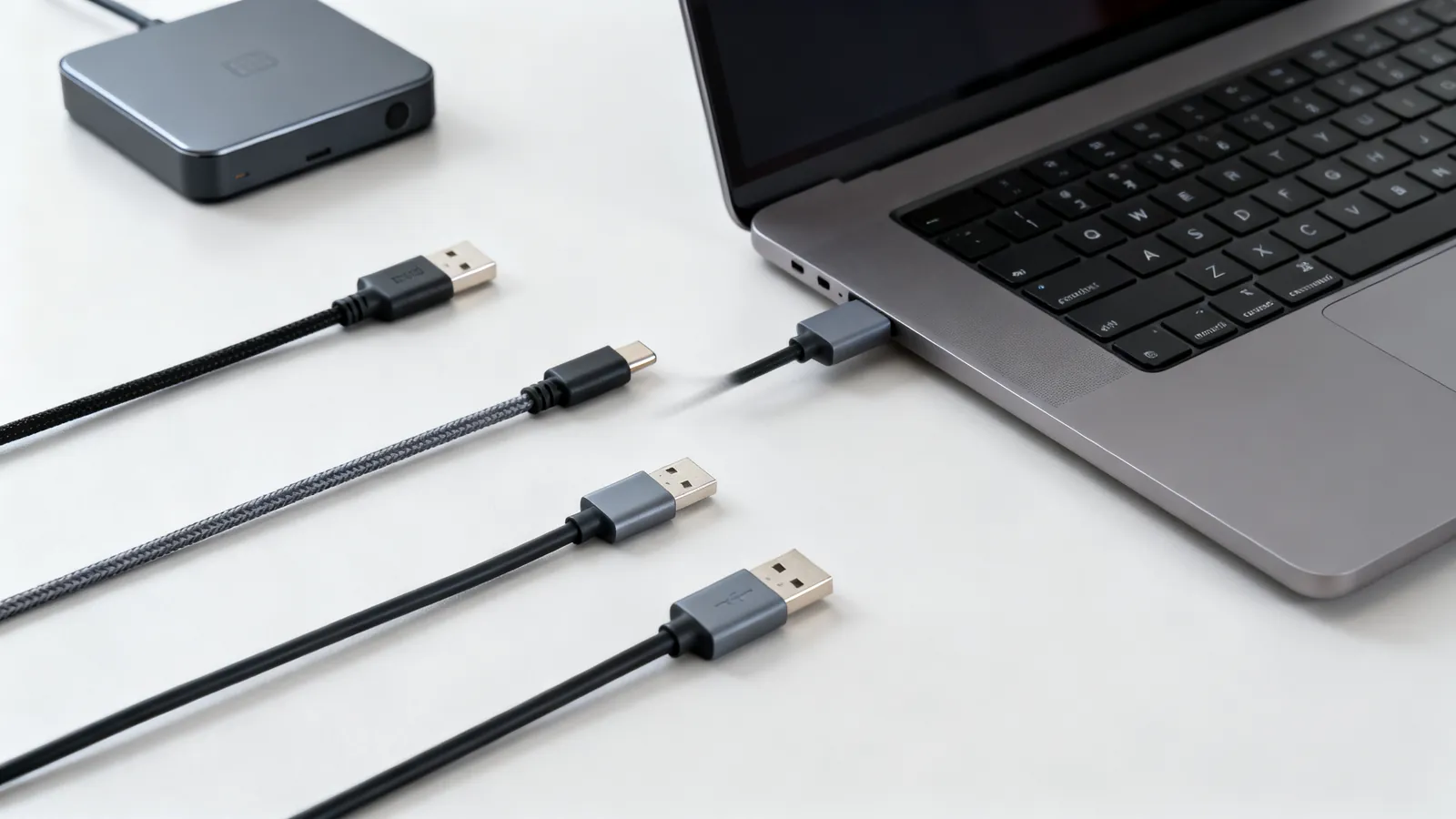
USB 3.0, 3.1, 3.2 and USB4 Speeds and Names Decoded
USB 3.0, 3.1, 3.2 and USB4 naming decoded: exact speeds, cable lengths, power limits, and what a drive or dock really needs.