USB Hubs and Docks: Powered vs Unpowered
How bus-powered and powered USB hubs differ, what a USB-C or Thunderbolt dock adds, why devices drop out, and the power and speed limits behind it.
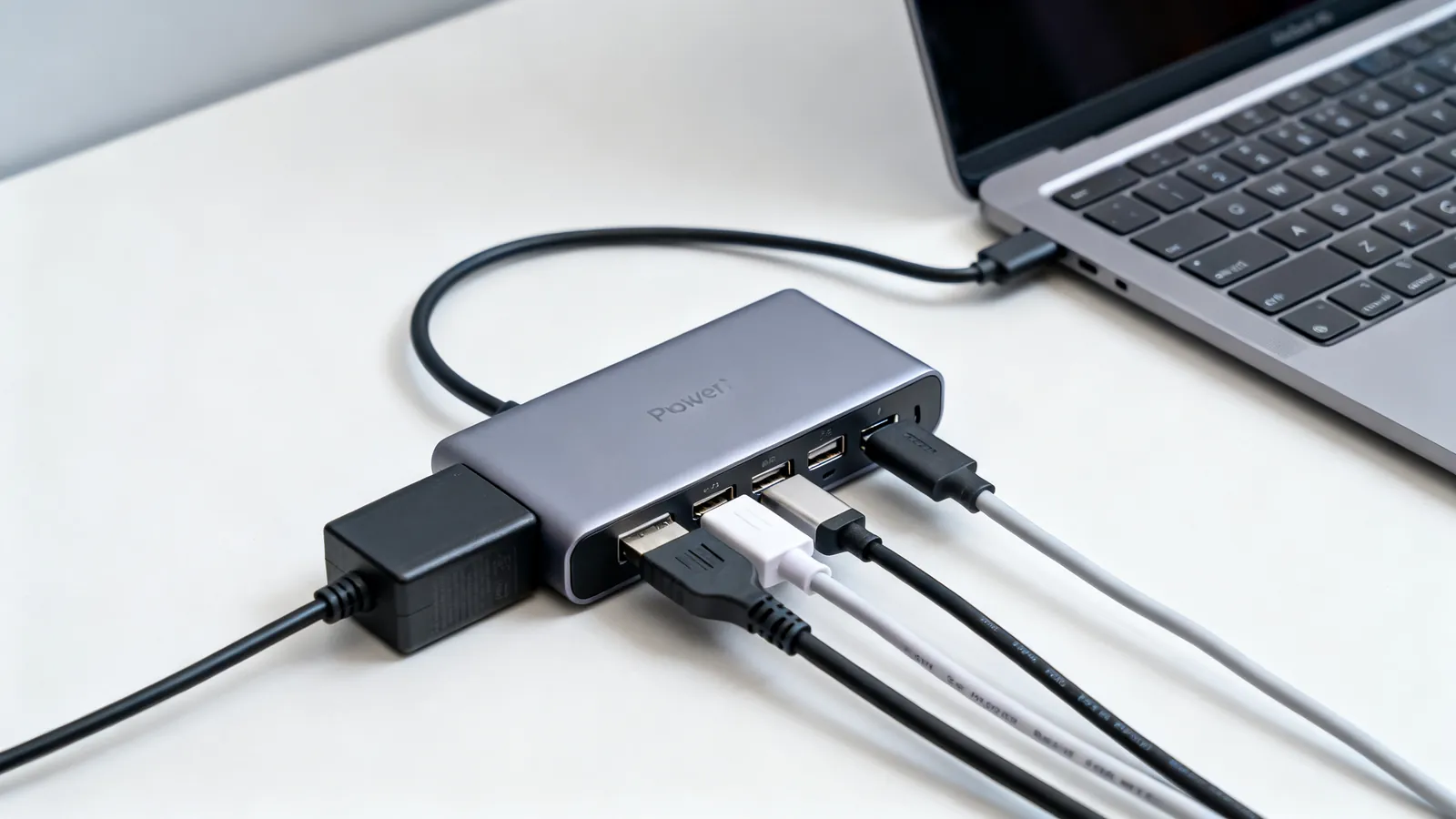
A hub splits one USB port into several; a dock does that and adds video outputs, Ethernet and charging through a single cable. The difference that decides whether your devices work is power: an unpowered (bus-powered) hub takes everything it needs from the host port, while a powered hub has its own adapter and can feed each device properly. A dock is normally a powered hub with extra functions built in, usually over USB-C or Thunderbolt.
Bus-powered and powered hubs
A bus-powered hub draws its current from the host port. That port supplies 500 mA at 5 V (2.5 W) on USB 2.0, or 900 mA (4.5 W) on USB 3.x. Every device on the hub shares that budget, so a keyboard and a mouse are fine and a portable drive plus a phone charging is not. When the total exceeds what the port can give, the hub either refuses the device or the device drops out mid-transfer.
A powered hub has its own adapter and does not draw its operating current from the host. Each downstream port can then supply its rated current, and the hub keeps working when the host port is close to its limit. This is the single change that fixes most “usb hub not working” cases: the hub was asked to run devices it had no power for.
| Hub type | Power source | Typical use | What goes wrong |
|---|---|---|---|
| Bus-powered | Host port (500 mA at 5 V on USB 2.0; 900 mA on USB 3.x) | Keyboard, mouse, flash drive | Devices drop out when total draw exceeds the port |
| Powered | Own adapter | Drives, phones, multiple devices | Still shares one host link’s bandwidth |
| Dock | Own adapter, plus video, Ethernet, charging | Laptop with one cable | Video and Ethernet depend on the host port’s capabilities |
What a dock adds over a hub
A dock adds video outputs, Ethernet and charging through one cable, usually over USB-C or Thunderbolt. The video side is not a USB data function in the ordinary sense: it is DisplayPort Alt Mode carried over the USB-C connector, or a Thunderbolt link carrying DisplayPort alongside PCIe and USB. A plain USB hub cannot create a video output that the host does not already provide.
Thunderbolt 4 gives 40 Gbps, PCIe at 32 Gbps, two 4K displays or one 8K, and laptop charging up to 100 W on at least one port. Thunderbolt 5 gives 80 Gbps both ways, up to 120 Gbps in one direction for displays, PCIe at 64 Gbps and charging up to 240 W. USB4 runs at 20 Gbps or 40 Gbps, and USB4 Version 2.0 at 80 Gbps, or 120 Gbps in one direction. USB4 is built on the Thunderbolt 3 protocol, which Intel contributed to the USB-IF in 2019, and Thunderbolt 4 and 5 cables also work as USB-C cables for data and charging. The differences between the two families are set out in Thunderbolt 3, 4 and 5 vs USB4.
Charging is where docks and hubs are most often misread. Every USB-C to USB-C cable must carry 3 A, so 60 W at 20 V. Currents above 3 A need a 5 A cable with an e-marker chip: 100 W cables, and 240 W Extended Power Range cables. USB Power Delivery Standard Power Range goes to 100 W (20 V at 5 A) with fixed voltages of 5 V, 9 V, 15 V and 20 V; PD 3.1 (2021) Extended Power Range goes to 240 W (48 V at 5 A), adding 28 V, 36 V and 48 V. A dock that advertises laptop charging needs a cable and a host port that support the wattage, not just a dock that lists it.
Shared bandwidth on one host link
A hub shares one upstream link among all its devices. The link speed is set by the host port and the hub, not by the number of ports on the hub. USB 2.0 is 480 Mbps; USB 3.0, also called USB 3.1 Gen 1, USB 3.2 Gen 1 or USB 5Gbps, is 5 Gbps; USB 3.1 Gen 2, also called USB 3.2 Gen 2 or USB 10Gbps, is 10 Gbps; USB 3.2 Gen 2x2 is 20 Gbps and is USB-C only.
In practice this means a fast SSD and a gigabit Ethernet adapter on the same hub compete for the same upstream bandwidth. A single 5 Gbps link is well above what a gigabit adapter needs, but two drives copying at once will each get less than the link’s full rate. A dock with its own Thunderbolt or USB4 link has far more headroom, which is why docks rather than hubs are used for video and storage together.
Cable length limits that apply to hubs and docks
The specification sets USB Type-C cable lengths by speed: USB 2.0 up to 4 m (13 ft); USB 5Gbps up to 2 m (6.6 ft); USB 10Gbps up to 1 m (3.3 ft); passive USB4 40Gbps up to 0.8 m (2.6 ft). USB 2.0 cables run up to 5 m (16 ft) per segment, and with up to 5 hubs in a chain, up to 30 m (98 ft) in total. USB 3.x passive cables with Type-A or Type-B plugs are commonly sold up to 3 m (10 ft); active and optical extension cables go further. The full set of limits is in maximum USB cable length.
A hub adds a segment, not a free extension. Chaining hubs to reach further works within the segment and hub-count limits, but each hop adds a place for power and signal to fall short. For a long run to a single device, an active or optical extension cable is the cleaner answer than a chain of hubs.
Why a device drops out on a hub
The usual causes, in the order they are worth checking:
- Power. The device needs more current than the port or the bus-powered hub can supply. A powered hub or a port on the host fixes it.
- The wrong cable. A USB-C cable may be a USB 2.0 cable (480 Mbps) or carry 10, 20, 40 or 80 Gbps. A charge-only cable has no data pairs at all. Swapping to a cable rated for the speed and power in use is often the whole fix.
- A hub that is not powered when the device expects power. Bus-powered hubs cannot charge a phone at full rate or spin up a drive reliably.
- Video expectations. A dock’s video output depends on the host port supporting DisplayPort Alt Mode or Thunderbolt. A port without it needs an active adapter, and a hub cannot add it.
- Driver and firmware behaviour. USB-to-serial adapters contain a converter chip that needs the right driver, and counterfeit chips can be blocked by the genuine maker’s drivers. The same applies to some dock Ethernet chips.
Hubs, docks and KVM switches together
A KVM switch shares one keyboard, monitor and mouse between computers, and EDID emulation keeps each computer seeing a monitor while it is switched away, so windows do not rearrange. Many KVM switches now carry USB-C or Thunderbolt, which means the dock may sit on the KVM’s device side rather than directly on the computer. The cabling and the EDID behaviour of that arrangement are covered in KVM switches: cables, EDID and USB.
Choosing between a hub and a dock
Choose a bus-powered hub when the devices are low-power: keyboard, mouse, flash drive, a printer that has its own supply. It is small, needs no adapter and is fine for a laptop bag.
Choose a powered hub when several devices run at once, when any of them is a drive or a phone charging, or when the host port is already close to its limit. The adapter is the point of the product.
Choose a dock when one cable must carry video, Ethernet, USB devices and laptop charging. Check three things before buying: the host port’s capabilities (USB-C with DisplayPort Alt Mode, Thunderbolt 4, Thunderbolt 5 or USB4), the charging wattage the dock and cable can pass, and the display resolution and refresh rate the host supports. A dock cannot exceed what the host port provides.
What will not work
- A bus-powered hub running a portable drive and a charging phone at the same time. The port’s current budget is shared and the total exceeds it.
- A charge-only USB-C cable carrying data, or a USB 2.0 cable carrying a 10 Gbps device at full speed.
- A passive USB-C adapter driving HDMI from a port without DP++ or DisplayPort Alt Mode. That needs an active adapter.
- A 100 W or 240 W charge over a cable without an e-marker chip. Above 3 A the cable must be rated and marked for it.
- A passive USB4 40Gbps cable longer than 0.8 m (2.6 ft) at full speed.
- A dock’s Ethernet or video working when the host port is a plain USB data port with no alternate mode.
- A USB-to-parallel adapter driving a programmer or dongle. These adapters work with printers, where they appear as a USB printer, but not with other parallel-port devices.
- A USB-to-TTL adapter treated as RS-232. TTL/CMOS serial at 3.3 V or 5 V is not RS-232, and joining the two directly can damage the low-voltage side.
Common questions
What is the difference between a USB hub and a dock?
A hub turns one USB port into several. A dock does that and adds video outputs, Ethernet and laptop charging through a single cable, usually over USB-C or Thunderbolt. A dock is normally powered and has far more upstream bandwidth than a plain hub.
Do I need a powered USB hub?
If the devices together draw more than the host port can supply, yes. A USB 2.0 port supplies 500 mA at 5 V (2.5 W) and a USB 3.x port 900 mA (4.5 W), shared across everything on a bus-powered hub. Drives, phones charging and several devices at once need a powered hub.
Why does my device keep disconnecting from the hub?
The most common causes are power (the device needs more current than the hub can give), a charge-only or USB 2.0 cable that cannot carry the speed or current, and a bus-powered hub trying to run a drive. A powered hub and a cable rated for the speed and power usually settle it.
Can a USB hub add a monitor output?
No. Video over USB-C comes from DisplayPort Alt Mode or from a Thunderbolt link, which the host port must support. A plain hub cannot create a video output. A dock can pass video through only if the host port provides it.
How many USB hubs can I chain together?
USB 2.0 allows up to 5 hubs in a chain, giving up to 30 m (98 ft) in total with 5 m (16 ft) segments, and a host controller addresses up to 127 devices. Each hop adds a place for power and signal to fall short, so a single active or optical extension cable is usually better than a chain.
Sources
Read next
Thunderbolt 3, 4 and 5 vs USB4: Speeds and Cables
Thunderbolt 4 vs USB4 explained: bandwidth, PCIe, displays, charging and cable lengths, plus how Thunderbolt 3 and 5 compare and which cable to buy.
Lightning to USB-C: Cables, Adapters and Speeds
Lightning vs USB-C explained: why iPhone moved to USB-C, the EU common charger dates, iPhone 15 transfer speeds, and which adapters work with older gear.
USB-C Cable Types: Data, Power and Video
Not all USB-C cables are equal. Learn how to tell a charging cable from a data cable, what an e-marker does, and which cable your monitor needs.
KVM Switch Cables, EDID and USB: A Reference
How a KVM switch works: matching video ports and bandwidth to your monitor, EDID emulation, USB keyboard emulation, and the cables between.
HDMI vs DisplayPort: Which Cable for Which Screen
HDMI and DisplayPort compared: bandwidth, refresh rates, daisy-chaining and adapters. Pick the right cable for a TV, a gaming monitor or a laptop.