DisplayPort 1.2, 1.4 and 2.1: Versions and Cables
DisplayPort 1.2, 1.4 and 2.1 compared: bandwidth, DSC, MST, DP40 and DP80 cable certification, and DisplayPort over USB-C.
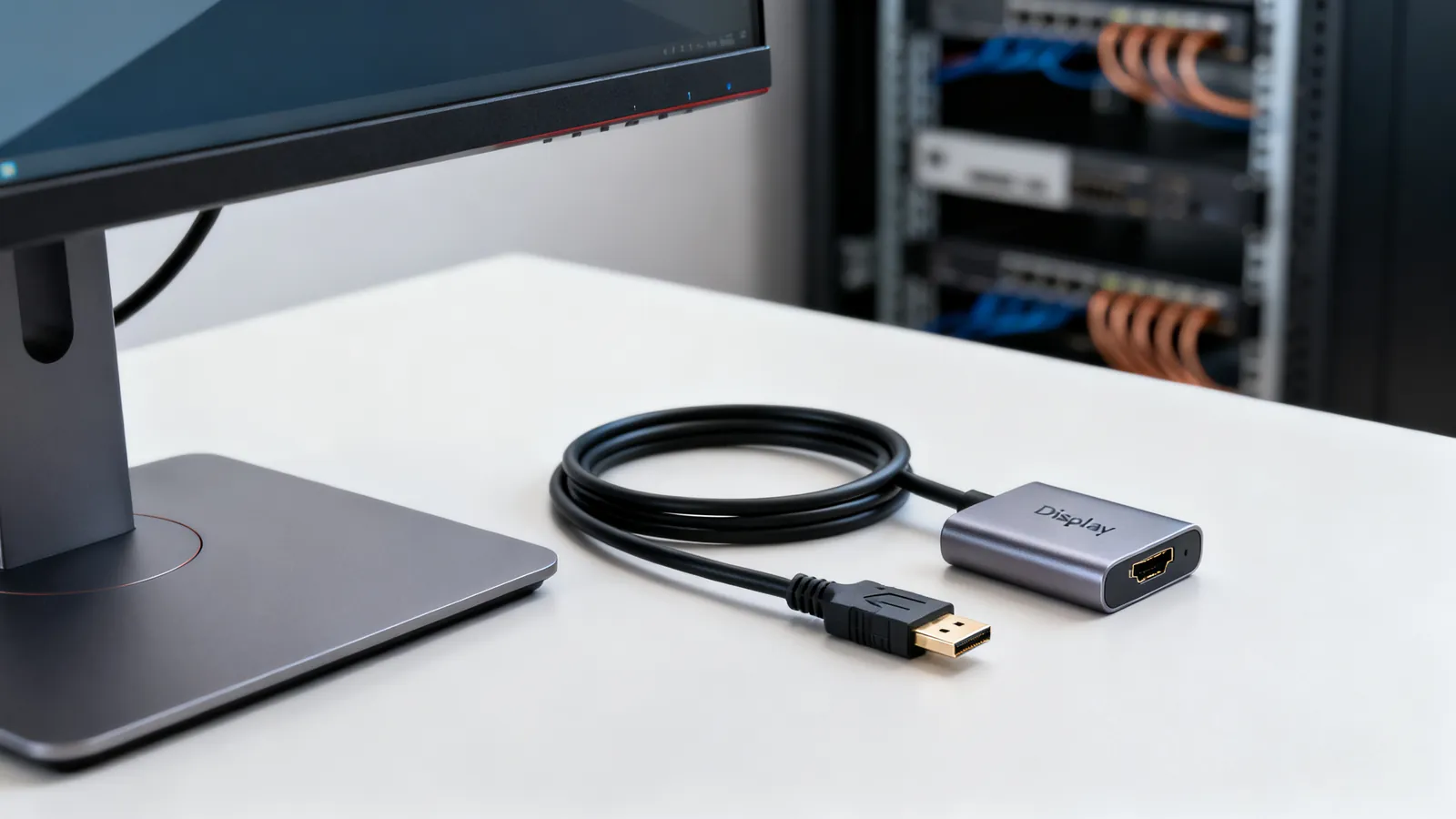
DisplayPort versions are defined by the VESA standard, and the version number tells you the link rate, not what a cable can do. DisplayPort 1.0 arrived in 2006; DP 1.2 raised the link to 21.6 Gbps (HBR2) and added MST daisy-chaining; DP 1.4 raised it to 32.4 Gbps (HBR3) and added DSC compression, enough for 4K at 120 Hz and 8K at 60 Hz with DSC; DP 2.0 and 2.1 define three UHBR rates - UHBR10 at 40 Gbps, UHBR13.5 at 54 Gbps and UHBR20 at 80 Gbps. A cable is certified by the rate it passes, not by a version number printed on the bag.
What each DisplayPort version carries
| Version | Link rate | Practical display support |
|---|---|---|
| DP 1.0 (2006) | HBR | Standard first-generation link |
| DP 1.2 | 21.6 Gbps (HBR2) | MST daisy-chaining added |
| DP 1.4 | 32.4 Gbps (HBR3) | 4K at 120 Hz, 8K at 60 Hz with DSC |
| DP 2.0 / 2.1 | UHBR10 40 Gbps, UHBR13.5 54 Gbps, UHBR20 80 Gbps | Higher resolutions and refresh rates, or more displays per link |
DP 1.4 is the version most desktops, laptops and monitors actually implement. It is the one to look for when a monitor needs 4K at 120 Hz or 8K at 60 Hz, and it does that with DSC, DisplayPort’s display stream compression. DSC is visually lossless compression applied to the link, not to the file; the monitor decompresses it. Without DSC, DP 1.4 carries less than the headline rate suggests, because the raw pixel rate of high-resolution, high-refresh video is large.
DP 2.0 and 2.1 are the same electrical specification under two names, with 2.1 adding management and cable-related refinements. UHBR20 at 80 Gbps is the top rate. A monitor and a graphics output must both support the UHBR rate in use; a DP 2.1 monitor on a DP 1.4 port falls back to HBR3.
DSC and MST
DSC, defined in the DisplayPort standard, compresses the video stream so a given link can carry more pixels. It is what makes 4K at 120 Hz and 8K at 60 Hz possible on DP 1.4. Both ends must support it; if the monitor does not, the source drops to an uncompressed mode with a lower resolution or refresh rate.
MST, multi-stream transport, arrived with DP 1.2. It lets one DisplayPort output drive several monitors from a single link, either through a hub or by daisy-chaining monitors that have a DisplayPort output of their own. The total pixel budget is shared, so two 4K displays at a high refresh rate can exceed what one HBR3 link carries. MST hubs and daisy chains also depend on the monitor’s own MST support; a monitor with only an input cannot pass the stream on.
Which cable for which rate: DP8K, DP40, DP80, DP80LL
VESA certifies DisplayPort cables by the link rate they are built and tested for:
| Certification | Rate | Use |
|---|---|---|
| DP8K | HBR3, 32.4 Gbps | DP 1.4 links, 4K at 120 Hz, 8K at 60 Hz with DSC |
| DP40 | UHBR10, 40 Gbps | Entry DP 2.0/2.1 links |
| DP80 | UHBR20, 80 Gbps | Full-rate DP 2.0/2.1 links |
| DP80LL | UHBR20, 80 Gbps, low loss | Longer UHBR20 runs |
A DP8K cable is the right choice for a DP 1.4 monitor. A DP40 or DP80 cable is what a DP 2.1 monitor and card need to reach UHBR rates. Buying a DP80 cable for a DP 1.4 link is harmless but unnecessary; buying an uncertified cable for an 80 Gbps link is where intermittent blanking and link drops come from. Passive DisplayPort copper cables lose margin as length and rate rise, so a long run at UHBR20 is harder than the same length at HBR3. DP80LL exists for exactly that reason.
When a monitor needs 4K at 120 Hz, the chain is: a source that supports HBR3 or better, a DP8K (or higher) cable, and a monitor that accepts the rate. If any part of that chain is a DP 1.2-era cable, the link negotiates down and the refresh rate drops with it.
Mini DisplayPort and the connector family
Mini DisplayPort is the same signal on a smaller plug. It appears on older laptops, on some small form-factor machines and on adapters. A Mini DisplayPort to DisplayPort cable is a passive cable: the wires run straight through, and no converter chip is involved. The same is true of Mini DisplayPort to HDMI or DVI only where the source port supports DP++.
DP++ (dual-mode) ports can drive HDMI or DVI through a passive adapter, because the port itself emits the required signalling. A port without DP++ needs an active adapter with a converter chip. This is the single most common adapter mistake: a passive HDMI adapter on a non-DP++ port gives no picture at all.
DisplayPort Alt Mode carries DisplayPort over USB-C. The video signal travels on the USB-C cable’s high-speed lanes, so the cable must be rated for the data rate involved. That is where the connector-versus-cable confusion bites: see why USB-C cables are not all the same before assuming any USB-C cable will carry a high-rate DisplayPort signal to a monitor.
Choosing between DisplayPort, HDMI and USB-C output
DisplayPort and HDMI overlap heavily at 4K, and the choice usually comes down to which port the monitor and the computer both have, and which features are needed. The comparison of rates, audio return and multi-display behaviour is covered in HDMI vs DisplayPort: which to use.
USB-C and Thunderbolt outputs are the other route to a monitor, and the cable matters as much as the port. A Thunderbolt 4 or 5 cable also works as a USB-C cable for data and charging, and Thunderbolt 5 runs 80 Gbps both ways with up to 120 Gbps in one direction for displays. The differences between the two families are set out in Thunderbolt 3, 4 and 5 vs USB4.
What goes wrong
- A version number on the packaging is not a rate. DisplayPort cables are certified by rate - DP8K, DP40, DP80, DP80LL - and a cable sold only as “DisplayPort 1.4” may not have been tested for HBR3. Match the certification to the link rate.
- A passive HDMI or DVI adapter on a non-DP++ port. No picture. Check whether the port is dual-mode before buying a passive adapter; otherwise use an active one.
- MST budgets are shared. Two high-resolution displays on one daisy chain can exceed the link, and the source drops the refresh rate or refuses the second display. Add up the pixel rate before assuming a chain will work.
- DSC needs both ends. A monitor without DSC cannot use the compressed mode, so 4K at 120 Hz or 8K at 60 Hz may not be available even though the cable and card support it.
- Long passive cables at high rates. At UHBR20, cable length is the limiting factor. A short certified cable is more reliable than a long uncertified one.
- USB-C cables are not interchangeable. A USB-C cable may be a USB 2.0 cable at 480 Mbps or carry 10, 20, 40 or 80 Gbps. DisplayPort Alt Mode over a charge-only cable will not drive a monitor.
- Adapters that convert the wrong direction. DisplayPort to VGA needs an active converter, because VGA is analogue. DisplayPort to DVI or HDMI can be passive only with DP++.
Matching the cable to the job
For a 4K monitor at 60 Hz on a DP 1.2-era machine, a standard DisplayPort cable is usually enough. For 4K at 120 Hz or 8K at 60 Hz with DSC, use a DP8K cable and confirm the monitor supports DSC. For a DP 2.1 card and monitor at UHBR20, use a DP80 or DP80LL cable, and keep the run as short as the layout allows. For a laptop with Mini DisplayPort, a passive Mini DisplayPort to DisplayPort cable is the simplest answer; for HDMI output from that port, check DP++ first.
Label both ends of every cable, and keep the certification of each one known. When a link drops to a lower resolution or refresh rate than expected, the cable and the adapter are the first two things to swap, before assuming the graphics output or the monitor is at fault.
Common questions
What is the difference between DisplayPort 1.4 and 2.1?
DP 1.4 runs at 32.4 Gbps (HBR3) and uses DSC to reach 4K at 120 Hz and 8K at 60 Hz. DP 2.0 and 2.1 define three higher rates: UHBR10 at 40 Gbps, UHBR13.5 at 54 Gbps and UHBR20 at 80 Gbps. Both the source and the monitor must support the UHBR rate in use, otherwise the link falls back.
Do I need a DP80 cable for a 4K 120 Hz monitor?
No. A DP8K cable is certified for HBR3 at 32.4 Gbps, which is what DP 1.4 uses for 4K at 120 Hz with DSC. A DP80 cable is certified for UHBR20 at 80 Gbps and is only needed for a DP 2.0 or 2.1 link running at that rate.
What is a Mini DisplayPort cable?
Mini DisplayPort is the same DisplayPort signal on a smaller plug, used on older laptops and some small machines. A Mini DisplayPort to DisplayPort cable is passive, with no converter chip. To drive HDMI or DVI from a Mini DisplayPort output, the port must support DP++, otherwise an active adapter is required.
Can I run two monitors from one DisplayPort output?
Yes, using MST, which arrived with DP 1.2. You can use an MST hub or daisy-chain monitors that have their own DisplayPort output. The link's total pixel budget is shared, so two high-resolution displays at a high refresh rate may exceed what one link carries.
Why does my DisplayPort monitor drop to a lower refresh rate?
The link negotiates to the highest rate that the source, cable and monitor all support. An uncertified or long cable, a monitor without DSC, or a source limited to an older DisplayPort version will pull the link down. Swap the cable first, then check the monitor's DSC and MST support.
Sources
Read next
KVM Switch Cables, EDID and USB: A Reference
How a KVM switch works: matching video ports and bandwidth to your monitor, EDID emulation, USB keyboard emulation, and the cables between.
Long HDMI Runs: Active, Fiber and HDBaseT
Why long passive HDMI cables fail, how active copper and fiber HDMI cables work, and when HDBaseT over category cable is the right answer for a long run.
HDMI Cable Types: Standard to Ultra High Speed
HDMI cables are certified by speed, not version. Compare Standard, High Speed, Premium High Speed, Ultra High Speed and Ultra96, and how to verify a label.
Maximum USB Cable Length: Limits by Version
USB cable length limits by version: USB 2.0 to 5 m, USB 3.x to 3 m, USB-C 40Gbps to 0.8 m. Hubs, active cables and optical extensions explained.
Thunderbolt 3, 4 and 5 vs USB4: Speeds and Cables
Thunderbolt 4 vs USB4 explained: bandwidth, PCIe, displays, charging and cable lengths, plus how Thunderbolt 3 and 5 compare and which cable to buy.